Instructions for Using the Conference Rooms
The conference rooms support two connection methods:
- HDMI – great for quick screen sharing.
- Poly Video System – ideal for Zoom meetings and video conferencing.
Option 1: HDMI Connection
Use this option when you just want to mirror your screen on the TV.
- Use the USB-C to HDMI cable to connect your laptop to the TV.
- Your screen should automatically be mirrored.
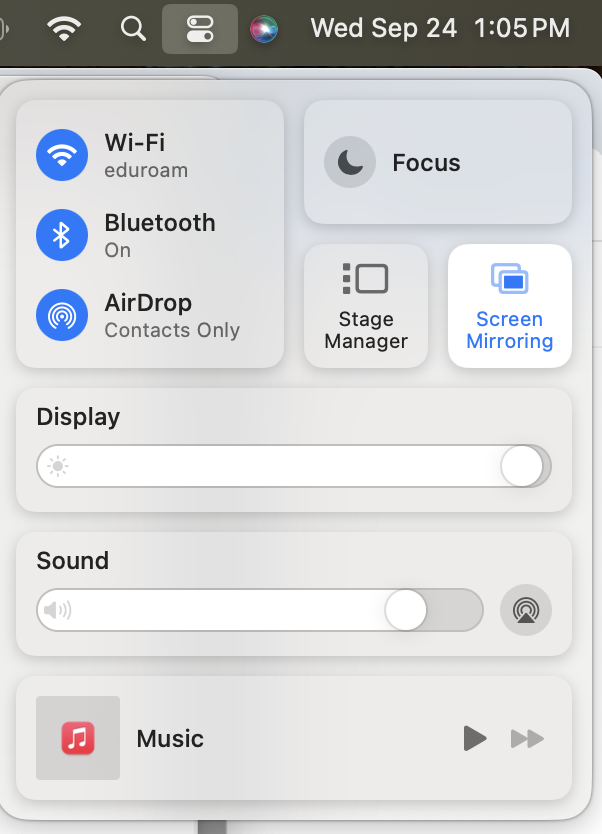
- If it doesn’t:
- Click the Control Center icon located in the top bar.

- Select Screen Mirroring.
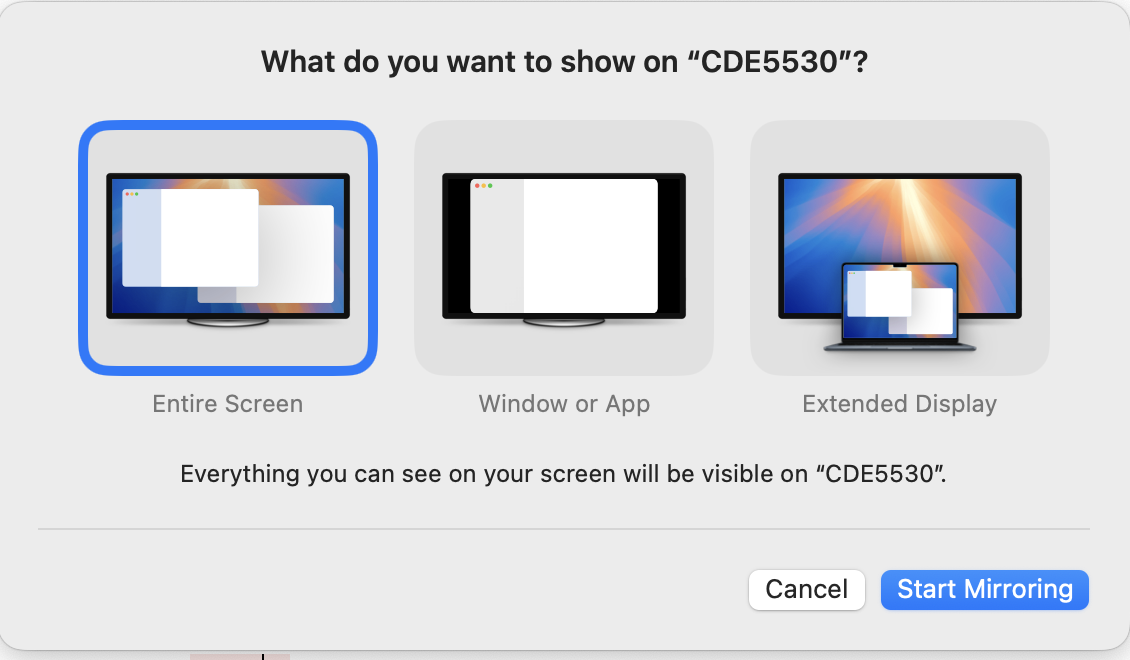
- Choose the content you want to display.

- Click Start Mirroring.
Option 2: Poly Video System (Recommended for Zoom)
The Poly system provides the best experience for video conferencing and Zoom meetings.
Getting Started with Poly
-
Turn on the system: Use the Poly remote control or press the power button on the main unit.
-
Connect your laptop:
- Use the provided USB-C cable to connect your laptop to the Poly system.
- Your laptop will automatically recognize the Poly as a camera and microphone device.
Using Poly with Zoom
-
Start your Zoom meeting on your laptop.
- In Zoom’s audio/video settings:
- Set Camera to: “Poly Studio”
- Set Microphone to: “Poly Studio”
- Set Speaker to: “Poly Studio”
- Camera Controls:
- The Poly system will automatically track speakers and adjust the camera view.
- Use the Poly remote to manually adjust camera position if needed.
- Screen Sharing:
- Share your screen normally through Zoom.
- Content will appear on both the room display and to remote participants.
Poly System Features
- Auto-framing: Automatically adjusts camera view based on room occupancy
- Noise reduction: Advanced audio processing for clear sound
- 4K video: High-definition video quality for professional meetings
- Content sharing: Seamless screen sharing integration
Audio Controls
- Room speakers: Controlled through the Poly system or TV remote
- Microphone muting: Use the mute button on the Poly remote or in your Zoom controls
- Volume adjustment: Use either the Poly remote or your laptop’s volume controls
Troubleshooting
HDMI Issues
- Ensure the HDMI cable is firmly connected to both your laptop and the TV
- Try unplugging and reconnecting the cable
- Check your laptop’s display settings to ensure it’s set to extend or duplicate the display
Poly System Issues
- If the Poly system doesn’t appear in Zoom:
- Unplug and reconnect the USB-C cable
- Restart Zoom
- Check that no other applications are using the camera/microphone
- If audio is choppy:
- Ensure no other devices are connected to the Poly system
- Check your laptop’s audio settings
- If the camera isn’t tracking properly:
- Use the Poly remote to reset the camera position
- Ensure there’s adequate lighting in the room
General Tips
- Test before important meetings: Connect and test your setup 5-10 minutes before scheduled meetings
- Close unnecessary applications: This helps ensure optimal performance
- Use wired internet when possible: For the most stable connection during video calls
For additional support, contact the IT help desk.