Instructions for Using the Huddle Room
The huddle rooms support three different connection methods: HDMI, Apple TV, and ShareLink. All offer the same presentation options. Please choose the method most convenient for you.
To begin, use the Extron touch panel located on the table to select your preferred connection method.

If the Display is set to OFF, press ON on the Extron panel or use the TV remote control on the table to turn it on.
Note: Zoom setup instructions are at the end of this guide.
Option 1: HDMI
- Use the USB-C to HDMI cable to connect your laptop to the TV.
- Your screen should automatically be mirrored.
- If it doesn’t:
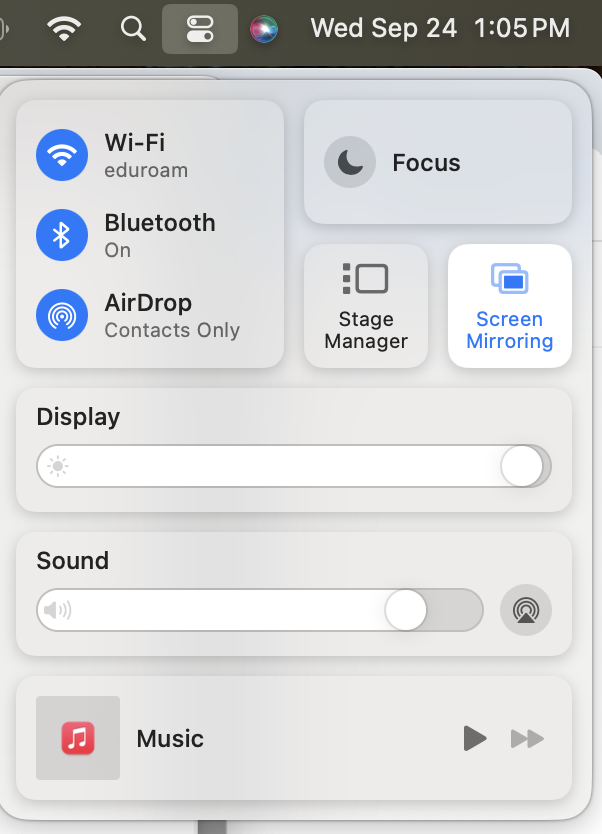
- Click the Control Center icon located in the top bar.

- Select Screen Mirroring.
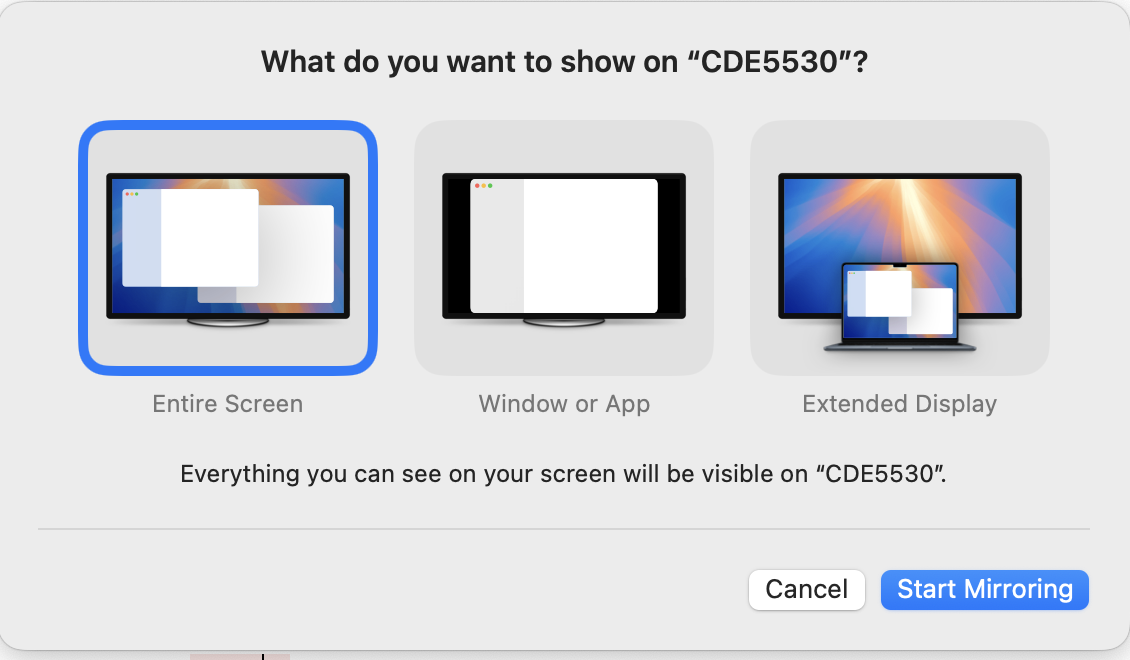
- Choose the content you want to display.

- Click Start Mirroring.
Option 2: Apple TV
- On your device, swipe down from the top-right corner to open Control Center.
- Tap Screen Mirroring.
- Select the Apple TV from the list of available devices.

- Choose the content you want to display.

- Click Start Mirroring.
Option 3: ShareLink
- On your laptop, open a web browser and go to the ShareLink URL shown on the room display.
- Follow the on-screen instructions to connect your device.
- Select the content you want to share.
Setting Up Zoom
For Zoom meetings in the huddle room:
- Connect your laptop using any of the methods above.
- Start your Zoom meeting on your laptop.
- Your meeting will be displayed on the room’s main screen.
- Use your laptop’s microphone and camera, or connect external devices as needed.
Troubleshooting
- If the screen doesn’t turn on, check that the power cable is connected and press the power button on the TV remote.
- If your device isn’t connecting, try restarting the Extron panel by pressing the power button.
- For Apple TV issues, ensure your device and the Apple TV are on the same network.
- If ShareLink isn’t working, try refreshing the browser and re-entering the URL.
For additional support, contact the IT help desk.